Intervals
Using the intervals, you can easily vary the value of a field based on other fields.
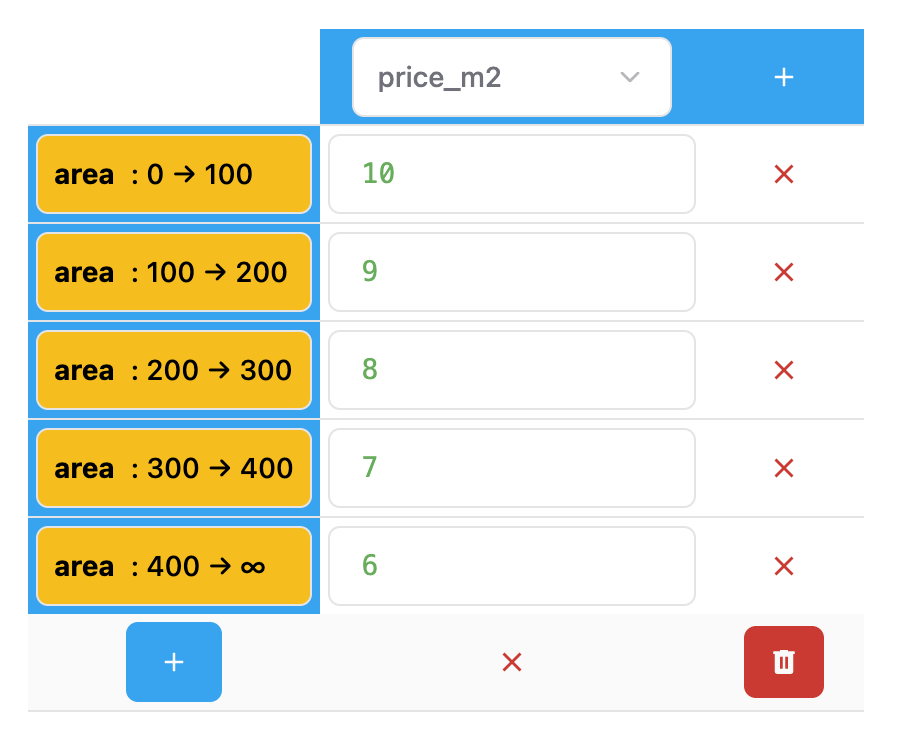
In this case, the price_m2 is reduced based on the area. This allows you to configure a regressive pricing easily.
Here's how the condition modal looks like:
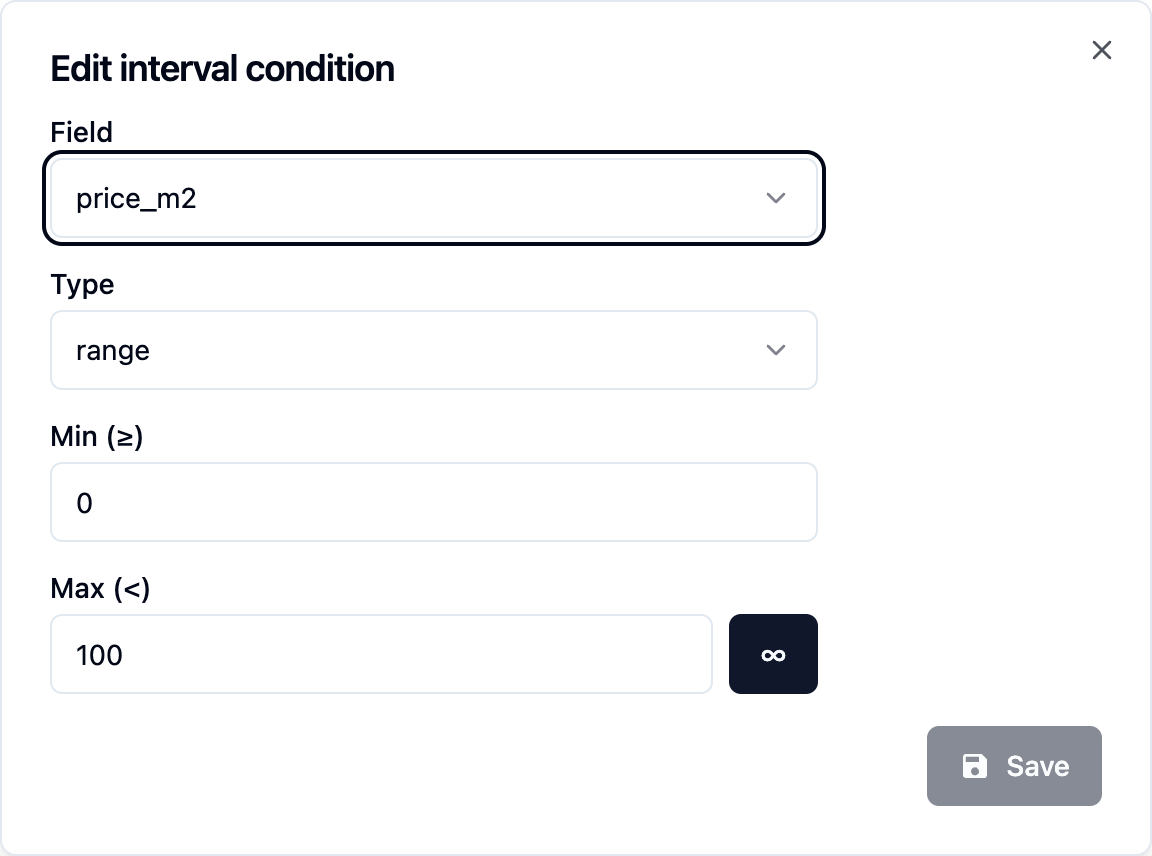
You can click the Infinity button if you want the condition range to be open-ended.
Using discrete values instead of a range
In addition to ranges, you can also use discrete values to create a simple price table for example.
The values can either be numbers or strings.
Example: varying the price based on the selected material
Here's how the material dropdown options look like:
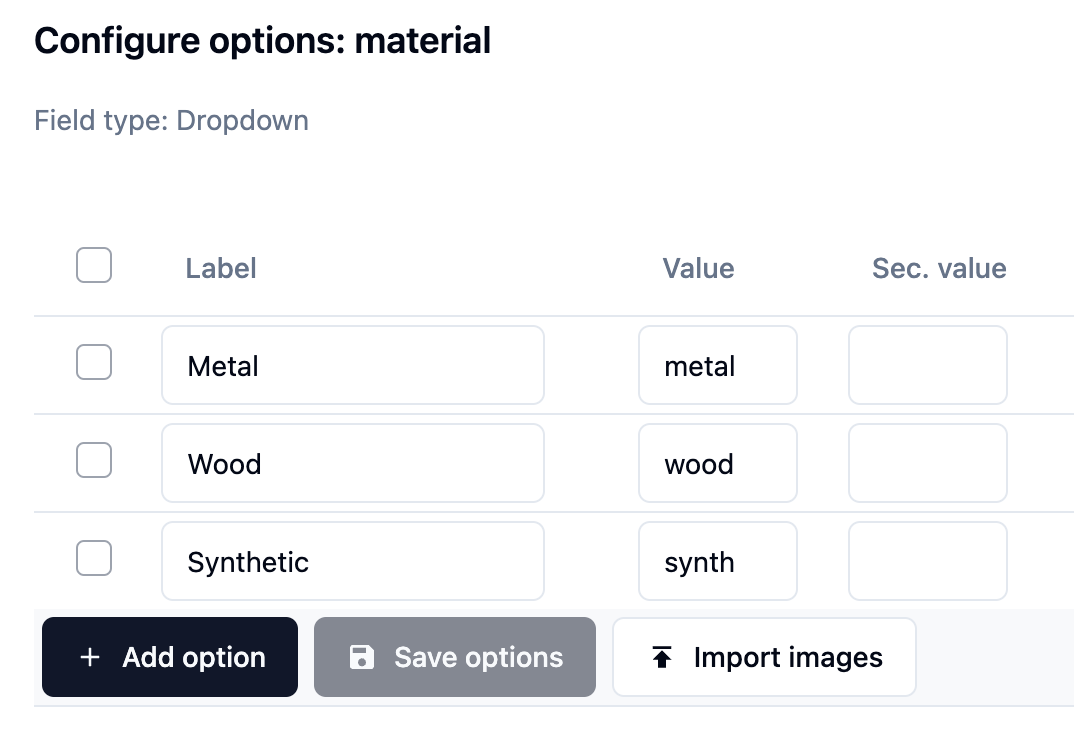
Notice that the values are strings. This makes it easier to reference the values in the interval conditions.
Here's how to add an interval condition using discrete values:
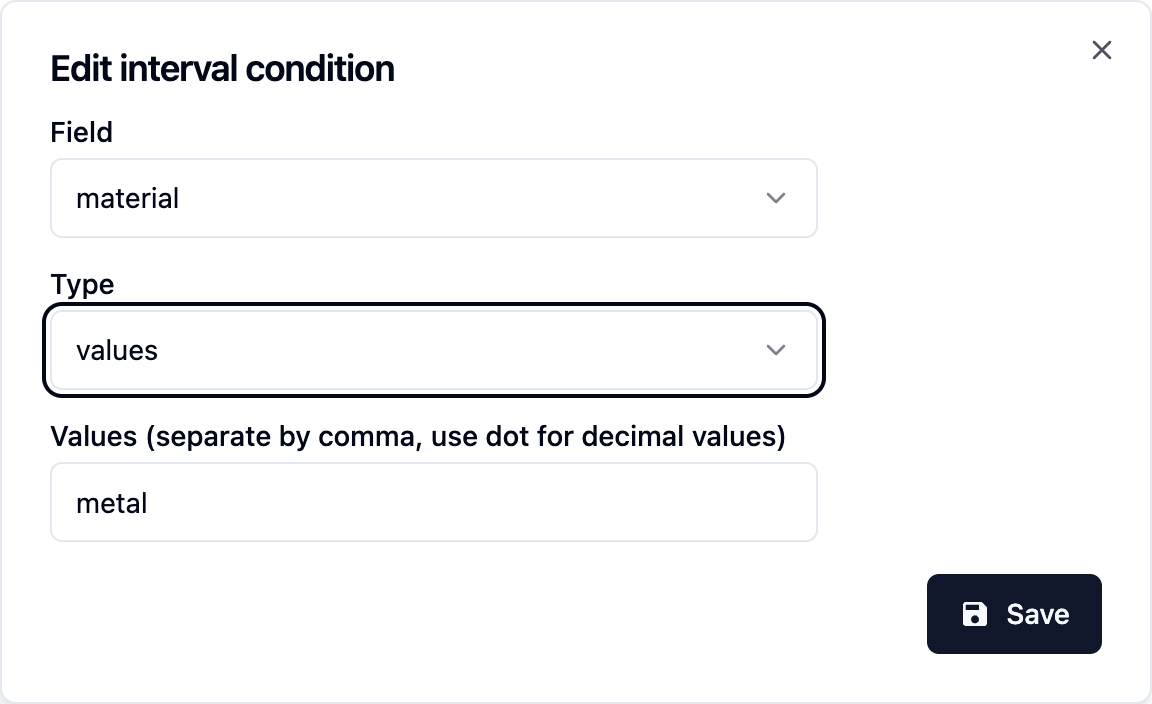
The configured interval will look like this
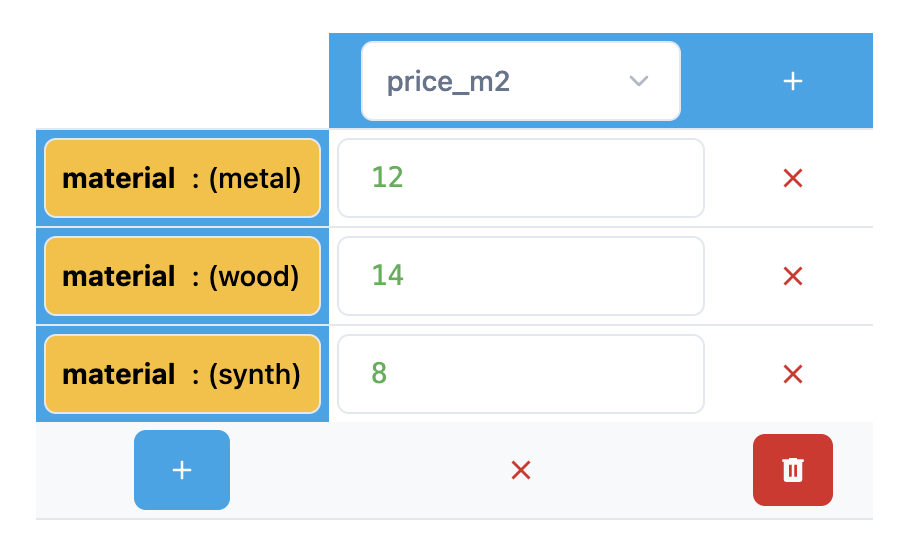
While you can put these prices in the option values directly, this method allows you to configure any number of fields based on the selected material, so it's more flexible and powerful.
TIP
You can also use multiple values in the condition by separating them with a comma. For example, wood,metal will match both values.
Using formulas in the intervals table
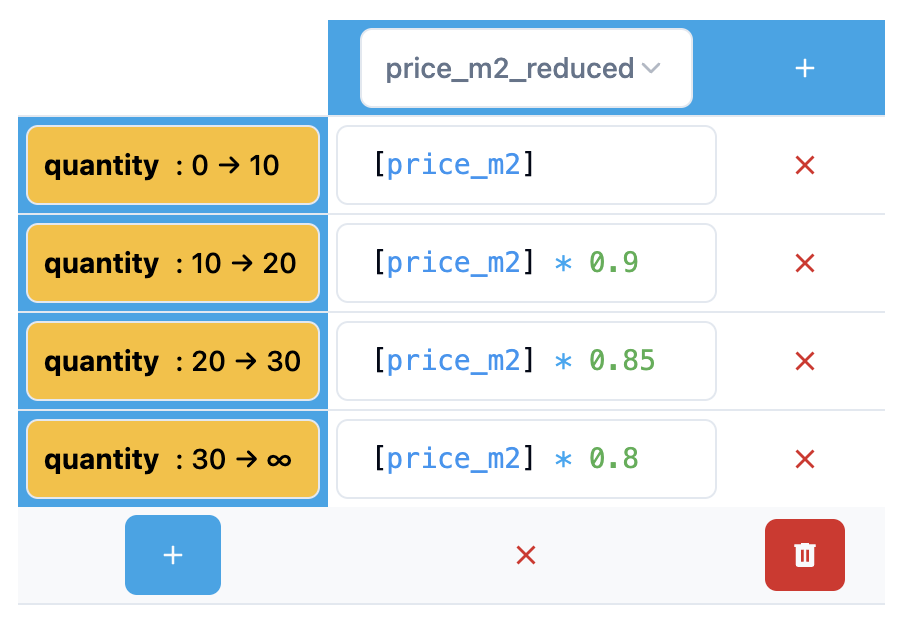
You can also use formulas in the intervals table. This allows you to create more complex calculation.
Example: Reducing a price based on the quantity
The quantity field
You can create a field called quantity and set the type to Dynamic Variable. This field will be synchronized with the PrestaShop quantity field both ways.