Formulas
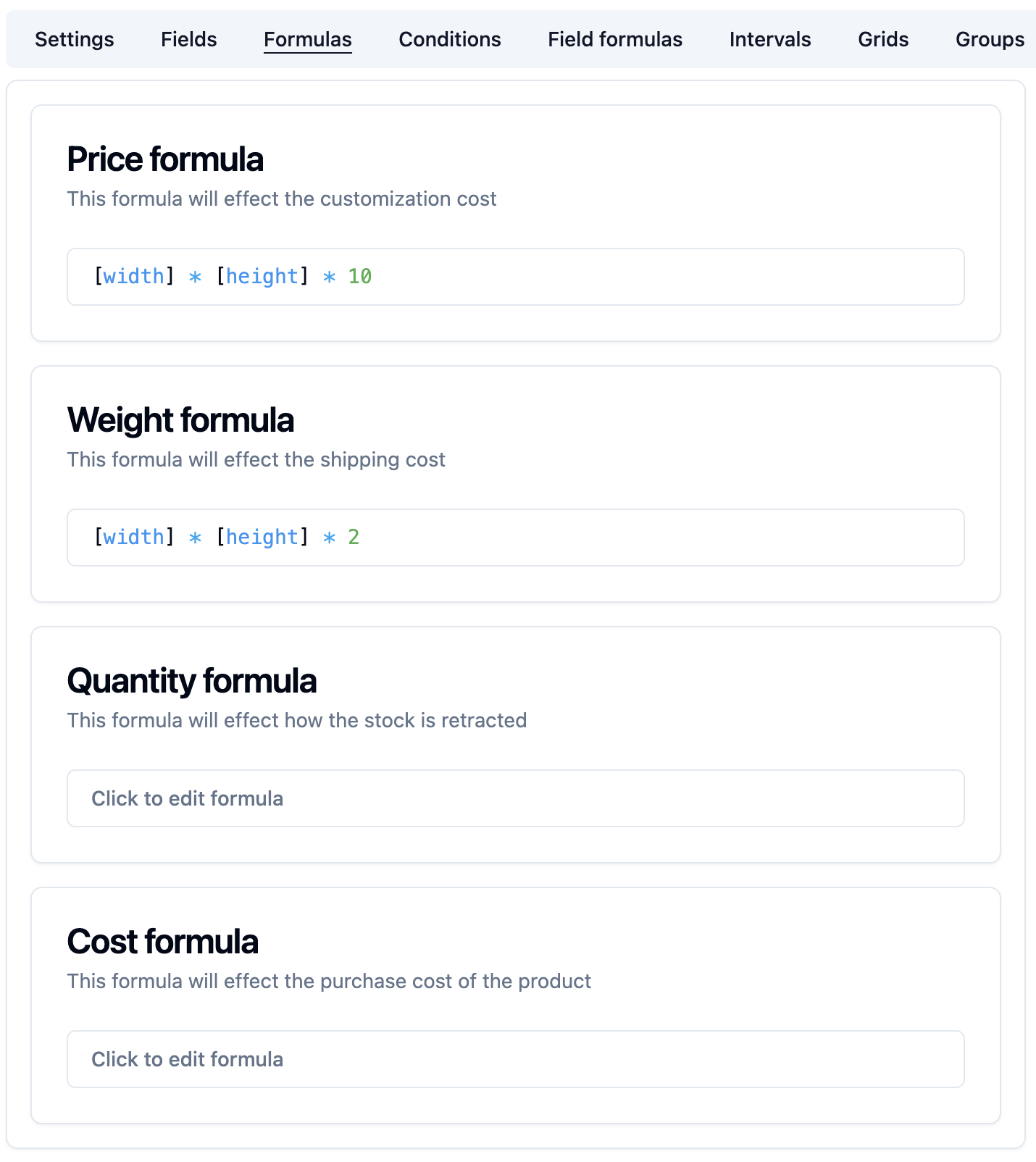
You can configure different formulas for your product. Such as the price and the weight formulas.
How to reference a field in a formula
The concept is to reference the fields by name between brackets, so if the field has the name width, then it can be referenced as [width].
The module will then replace the field references with their corresponding values.
If the field has options then the reference will be replaced by the value of the selected option.
You can use double brackets to reference the secondary value of the selected option.
[[dropdown]]When a value is a string, it should be surrounded by double quotes.
"[text]"For example, if you want to use the text length in a formula, you can reference it like this:
STRLEN("[text]")Price formula
The price formula is used to calculate the price of the product based on the fields values.
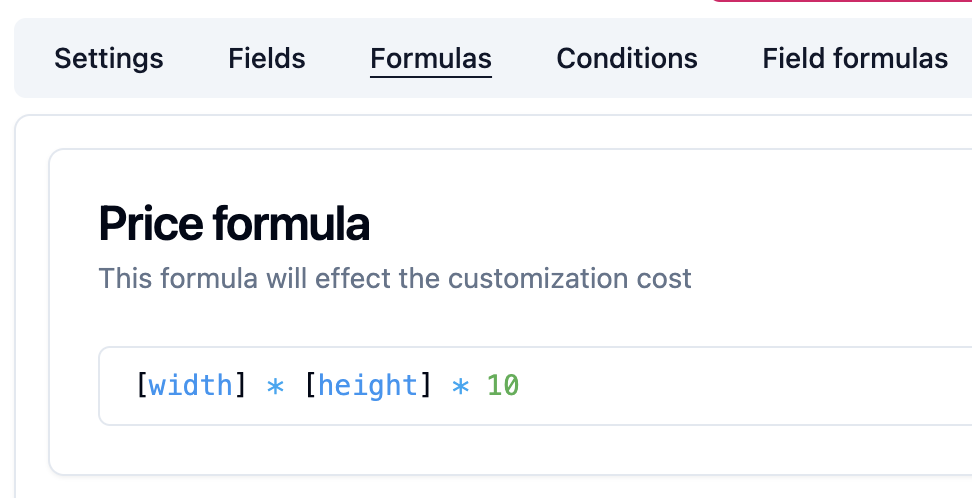
The module uses an Excel format for the formulas. In this case, the formula is charging 10€ for each square meter.
[width] * [height] * 10If the centimeters are used, you need to convert them to meters:
[width] * [height] / 10000 * 10Info
The base price of the product that is configured in PrestaShop is added to the formula. The tax is also applied automatically based on the product configuration.
You can also use formula functions in the formula.
Example:
Round up the area to the nearest whole square meter:
ROUNDUP([width] * [height] / 10000) * 10Charge at least 1 square meter:
MAX([width] * [height] / 10000, 1) * 10Charge at least 50€:
MAX([width] * [height] / 10000 * 10, 50)Info
In the docs, Euros are used as an example, but it depends on your shop's default currency.
Weight formula
The weight formula is used to calculate the weight which will affect the shipping cost.
The result of the formula is added to the product weight that is configured in PrestaShop.
Example:
This formula is charging 2kg for each square meter:
[width] * [height] / 10000 * 2Carrier filtering
If you want to filter carriers based on the product dimensions, refer to the carrier filtering section.
You can also show the weight in the product page by enabling the Display weight to customers option in the product settings.

Quantity formula
This formula affects the quantity that is retracted from the stock when the order is validated.
This is useful when you want to retract meters for example instead of units.
Example:
You have a field named length that you would like to use to retract the number of ordered meters.
You can configure this formula:
[length]If you'd like to retract by meter squared for example
[width] * [length]Cost formula
This formula allows you to vary the product cost dynamically. It's useful to get a correct profit reporting.
For example, if you sell a product by the meter, you can configure this formula to calculate the cost based on the length.
Example:
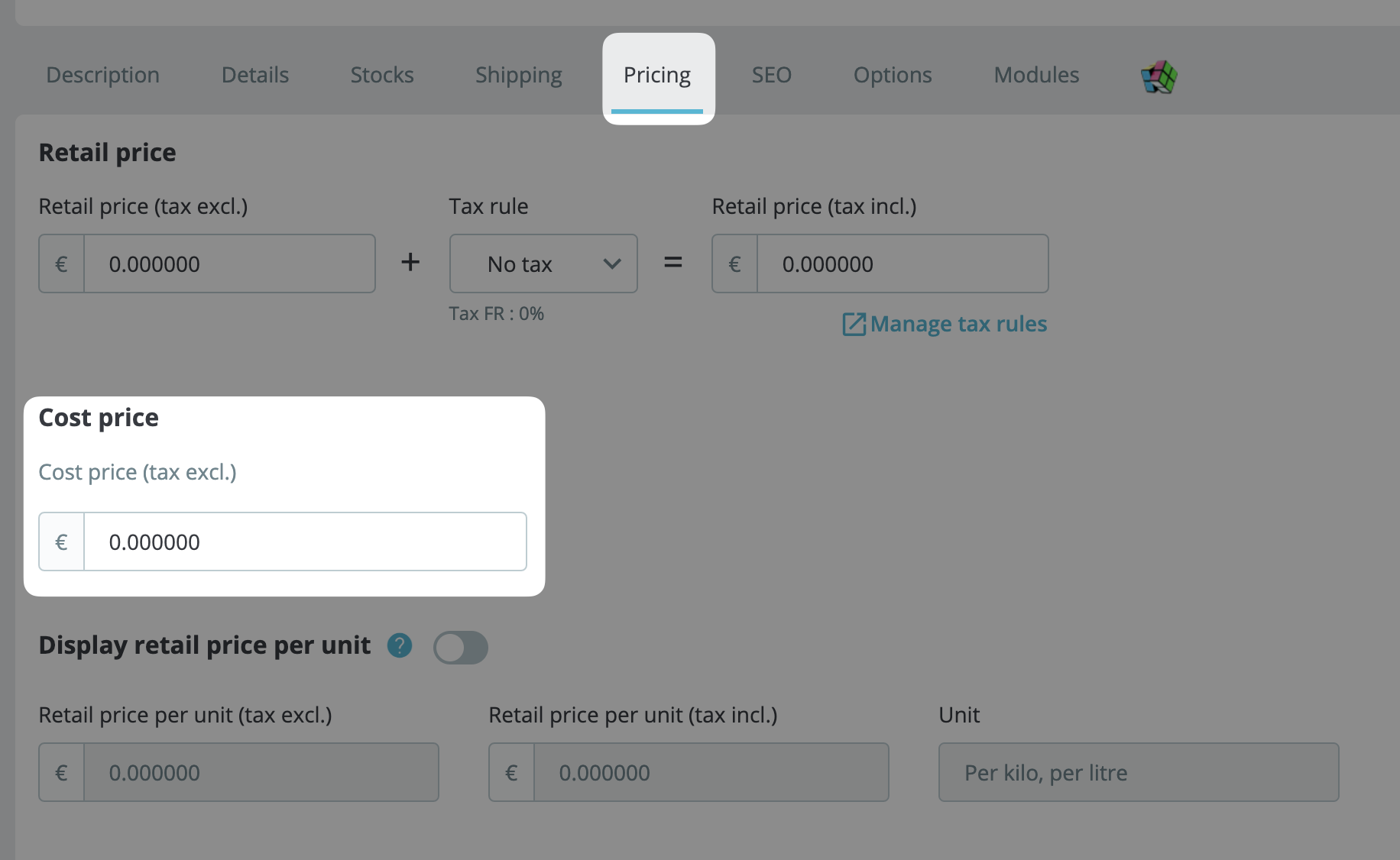
[height] * [cost_per_m]This formula correspond to the cost price that you can configure in PrestaShop.