
Formula functions
The module supports many Excel functions and operators that you can use in your calculations
Operators
OR
You can use the oOR operator to check if at least one of the conditions is true
[width] > 10 | [height] > 10It means that if the width is greater than 10 OR the height is greater than 10, the condition will be true
AND
You can use the AND operator to check if all the conditions are true
[width] > 10 & [height] > 10It means that if the width is greater than 10 AND the height is greater than 10, the condition will be true
Standard functions
SQR
Return the square of a number
SQR(5) → 25SQRT
Returns the square root of a number
SQRT(25) → 5ABS
Returns the absolute value of a number
ABS(-10) → 10SIGN
Returns the signs of a number
SIGN(10) → 1
SIGN(-10) → -1
SIGN(0) → 0
TRUNC
Returns the truncated number
TRUNC(4.9) → 4
TRUNC(-3.5) → -3
CEIL
Rounds a number up
CEIL(3.2) → 4
CEIL(-3.14) → -3
FLOOR
Rounds a number down
FLOOR(3.2) → 3
FLOOR(-3.14) → -4
ROUND
Uses PrestaShop rounding method (configurable in the PrestaShop settings)
ROUND(number, decimals)
ROUND(5.16, 0) → 5
ROUND(5.16, 1) → 5.2
ROUNDUP
Rounds a number up using PrestaShop's rounding method
ROUNDUP(number, decimals)
ROUNDUP(5.16, 0) → 6
ROUNDUP(5.11, 1) → 5.2
ROUNDDOWN
Rounds a number down using PrestaShop's rounding method
ROUNDDOWN(number, decimals)
ROUNDDOWN(5.16, 0) → 5
ROUNDDOWN(5.11, 1) → 5.1
VAL
Returns the number value of a string
VAL("2") → 2POW
Raise a number to a specific power
POW(5, 3) → 125MIN
Return the smallest value among the passed parameters (accepts two parameters or more)
MIN(10, 5, 14, 3) → 3MAX
Return the biggest value among the passed parameters (accepts two parameters or more)
MAX(10, 5, 14, 3) → 14IF
Test for a specific condition
IF(condition, value if true, value if false)
IF(100 > 10, 1, 2) → 1
IF(5 > 10, 1, 2) → 2
STRLEN
Return the number of characters in a string (supports UTF-8)
STRLEN('Hello') → 5
STRLEN('World!') → 6
SUBSTR
Extract a string from another string
SUBSTR(string, start, length)
SUBSTR("Hello world!", 0, 5) → "Hello"
REPLACE
Find and replace a string in another string
REPLACE(string, find, replace)
REPLACE("It's a good day", "good", "great") → "It's a great day"
CONCAT
Joins multiple strings together, accepts two strings or more
CONCAT("A great ", "day") → "A great day"
CONCAT( "A great ", "day ", "today" ) → "A great day today"
Available variables
PI
The PI constant
PI * SQR([diameter] / 2)Custom functions
These custom functions are added by the module for convenience and to satisfy some specific use cases.
CONTAINS
Check if a string is contained withing another string
CONTAINS(string, partial)
CONTAINS("Hello world!", "Hello") → 1
CONTAINS("Hello world!", "Hello!") → 0
CONTAINS("Hello world!", "Test") → 0
CHECK
Checks if a string is not empty, return 0 if string is empty, 1 otherwise
CHECK("Hello") → 1
CHECK("") → 0
PRICE
Formats a number as a price, useful when displaying dynamic content
PRICE("29.5") → €29.50
PRICE("120") → €120.00
PRICE("10000") → €10,000.00
BINARY_AND
Performs a bitwise AND operation
BINARY_AND(4, 1) → 0
BINARY_AND(6, 2) → 2
BINARY_OR
Performs a bitwise OR operation
BINARY_OR(4, 1) → 5
BINARY_OR(6, 2) → 6
LABEL
Returns the label of the current selected option of a field. The returned label will be in the default language of the shop.
This function makes it easier to reference the selected option in a formula.
LABEL("{dropdown}") → "Option 1" // for exampleREF
Returns the reference of the current selected option of a field.
REF("{dropdown}") → "opt1" // for exampleNUM_SELECTED
Returns the number of selected options in a multiple selection field.
NUM_SELECTED("{images}") → 4 // for exampleTIP
The LABEL, REF, and NUM_SELECTED need the field ID. That's why the field name is surrounded by curly braces. It's a placeholder that will be replaced by the actual field ID when the formula is executed.
The Grid function
Grid: Allows reading a CSV file and getting a result based on two values
This function is very similar to the Grid feature but it's more recommended because it allows you to use one csv file for multiple products and is more efficient and performant than the grids.
The function format is as follows
Grid( database, row value, column value, default value )The default value parameter is optional, it will be used when no cell matches the passed parameters. If no default value is passed to the function, then 0 will be the default value.
Here's a CSV sample
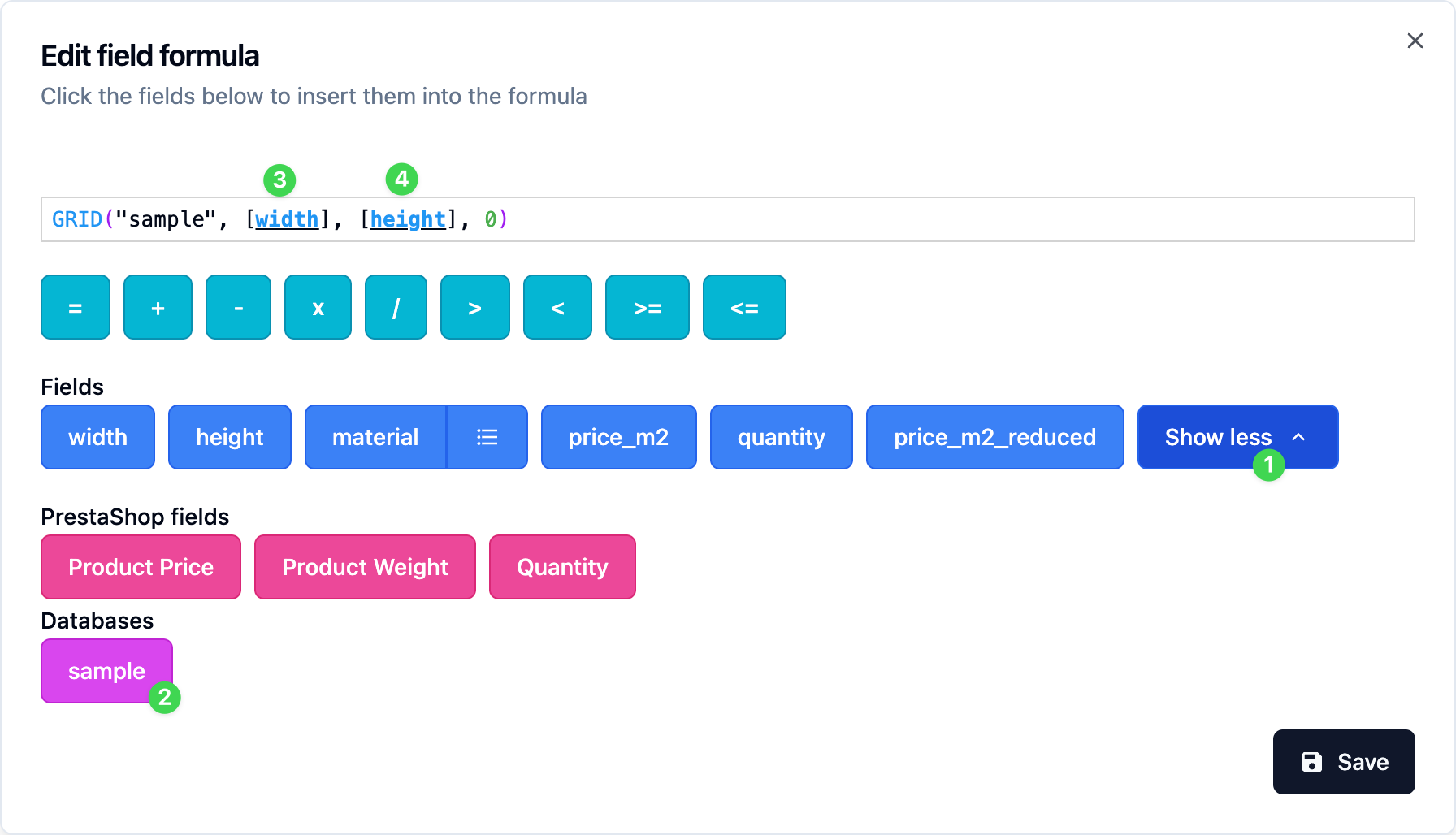
To use this function, start by uploading your CSV file to the folder [root of PrestaShop]/dynamicproduct/databases/
Then in the formula, you can insert this function by clicking the CSV file
- Click the "Show more" button
- Click the CSV file to insert the Grid function into the formula
- Insert the two other fields that will act as the input to the grid
In this case, we get a price based on the width and height values
TIP
For decimal numbers, use the dot instead of the comma.
For example, write 10.5 instead of 10,5