
Common cases
Here are some common cases that many merchants encounter. It can be a simpler way to get you started with the module.
Each feature will have a link to the corresponding documentation page. You can find more detailed information there.
You can also find many product examples in the examples demo
Examples
- Charge a price based on a product area
- Add an extra cost based on a selected option
- Add extra cost based on a checkbox
- Charge a minimum price
- Display a custom error message
- Read any variable from PrestaShop
- Invert the tax calculation
Charge a price based on a product area
Create a width and height field then configure this price formula for example:
[width] * [height] * 10But in most cases, the fields are in centimeters, so you need to convert them to meters:
[width] * [height] / 10000 * 10In this case, you are charging 10€ for each square meter.
TIP
In the docs, Euros are used, but it depends on your shop's default currency.
You can even create a dynamic variable field called area and assign the area to it using a field formula.
Then you can use this variable in the price formula:
[area] = [width] * [height] / 10000Then the price formula becomes:
[area] * 10Add an extra cost based on a selected option
You can create a dropdown field called material with options like:
- Metal
- Wood
- Plastic
Then you can assign a value to each option of the dropdown and use the field directly in the price formula:
[material]The field value will be replaced by the value of the selected option.
So it will be easy to add many options like this
[material] + [color] + [size] // etc...You can even charge based on the area and material like this
[area] * [material]Add extra cost based on a checkbox
You can create a checkbox field called gift_wrap for example.
Then you can use it in the price formula like this:
[gift_wrap] * 5or you can use the IF function to add a cost only if the checkbox is checked
IF([gift_wrap], 5, 0)Charge a minimum price
You can use the max function to set a minimum price. For example, if you want to charge at least 10€:
MAX(10, [area] * 10)The max function will return the highest value between the two.
Display a custom error message
You can use the error message field to display a custom error.
Then you can control the visibility of the error message using a condition.
Example
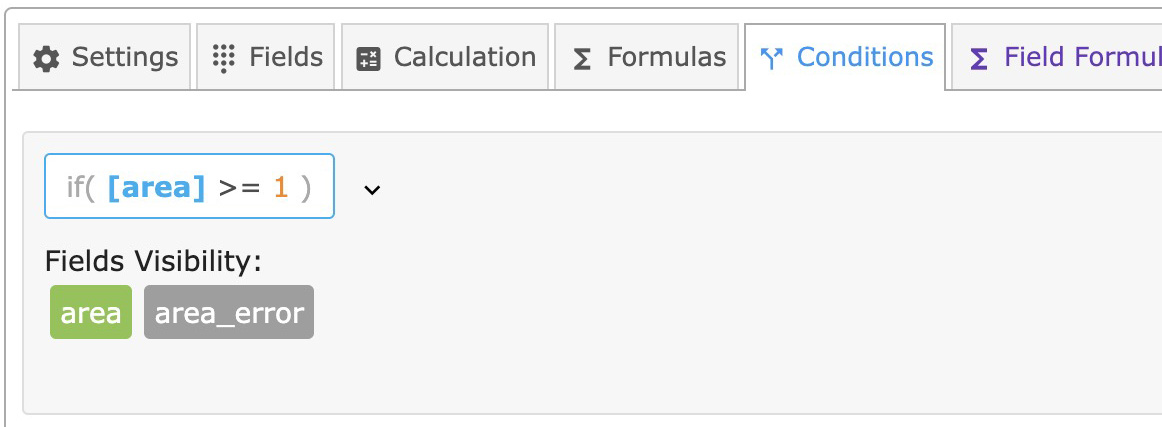
Display an error when the ordered area is less than 1 square meter:
Condition formula:
[area] >= 1Then you can hide the error message in the condition fields.
Read any variable from PrestaShop
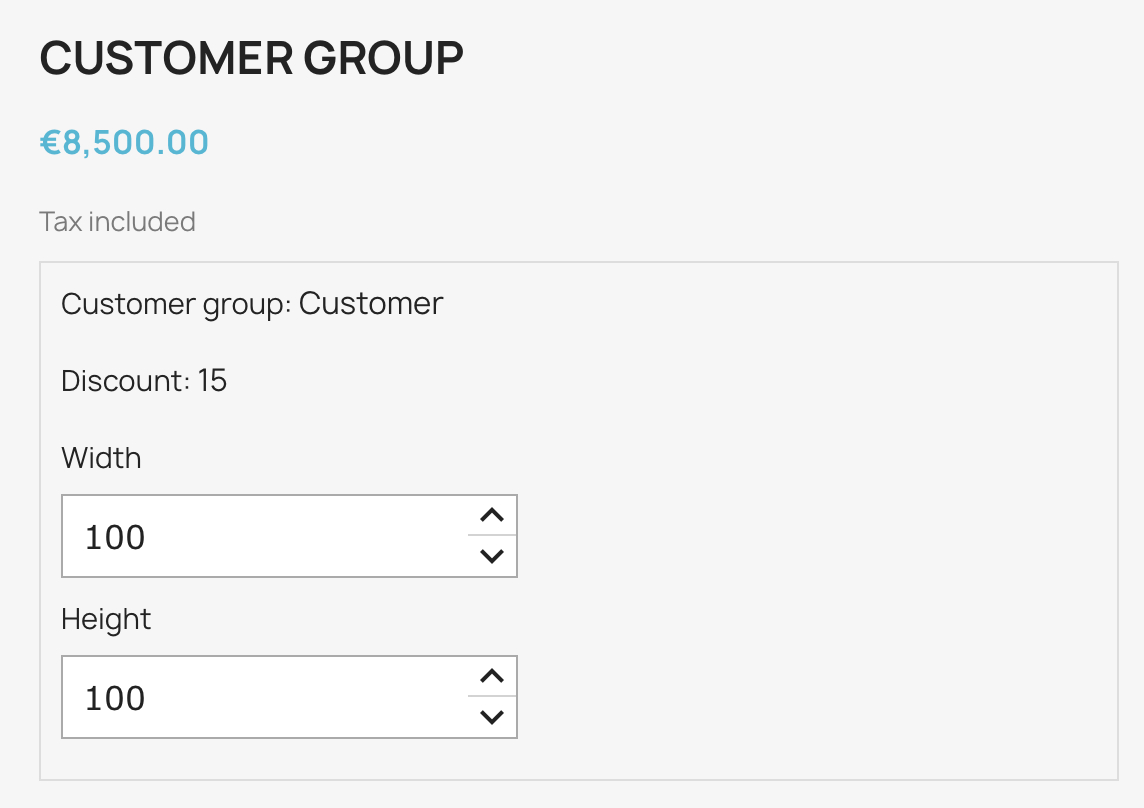
In this example, we will read the customer group and apply a discount based on it.
1- Create a dynamic field called customer_group and set the type to Dynamic Variable. 2- Create a php file in [Root of PrestaShop]/dynamicproduct/allocations/products.php and add this code:
<?php
if (isset($customer_group)){
    $context = Context::getContext();
    $default_lang = Configuration::get('PS_LANG_DEFAULT');
    $id_customer_group = (int)$context->customer->id_default_group;
    if($id_customer_group){
        $group = new Group($id_customer_group, $default_lang);
         // customer_group will contain assign Guest, Visitor, etc...
        $customer_group = $group->name;
    }
}
Then you can easily create discounts for each group of your choice using the Intervals for example
Example
An interval that varies the value of a discount field
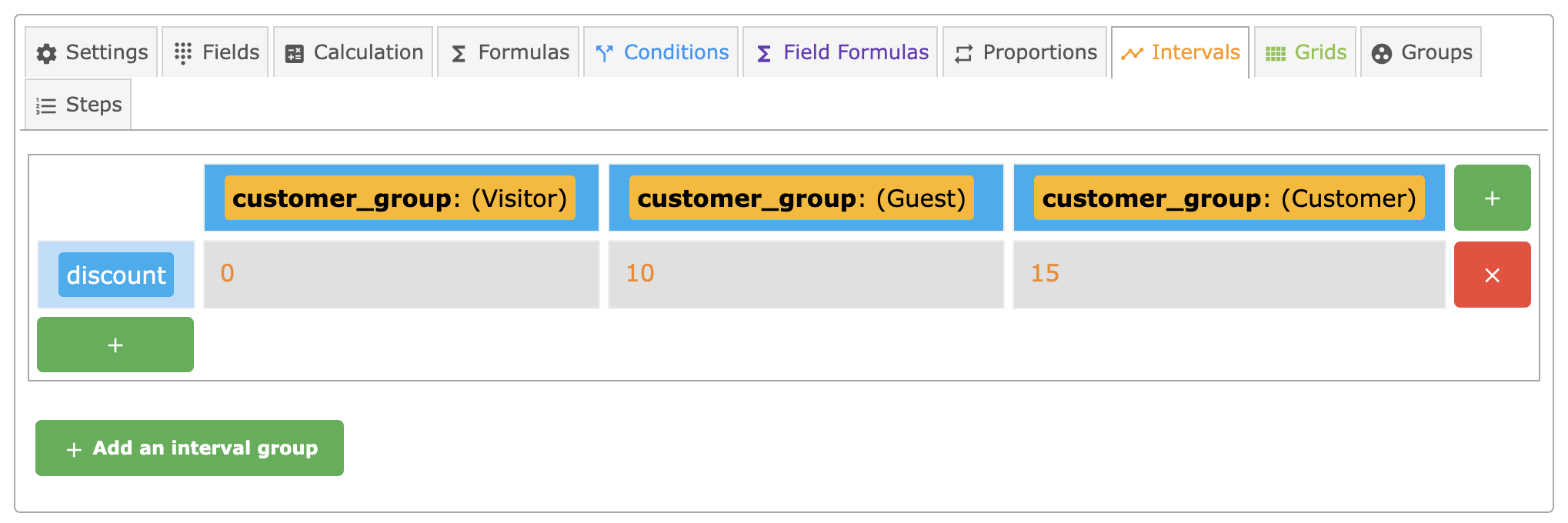
Finally, you can use this discount field in your price formula
[width] * [height] * ((100 - [discount]) / 100)This will apply a discount based on the customer group.
Invert the tax calculation
By default, the module applies the tax to the calculated price.
If you want to invert the tax calculation, you can use the PHP calculation feature.
1️⃣ Create a dynamic field called tax_rate and set the type to Dynamic Variable.
2️⃣ Create a php file in [Root of PrestaShop]/dynamicproduct/allocations/products.php and add this code:
<?php
// Will continue only if you have a field called tax_rate
if (isset($tax_rate)){
    // first read the tax rate of the current product
    /** @var $module DynamicProduct */
    $tax_rate = $module->calculator->getTax($id_product);
}
Now, you can use the tax_rate field in your price formula or in any field formula to invert the tax calculation.
3️⃣ Use the field in your price formula
([width] * [height]) / (1 + [tax_rate] / 100)TIP
If you want to invert the tax calculation for any product that has a tax_rate field, you can add this code in the [Root of PrestaShop]/dynamicproduct/calculator/products.php file
<?php
$result = $result / (1 + $tax_rate / 100);